
Weekly Timesheet Template
Free Weekly Timesheet Template – Excel & Google Sheets (With Overtime)
Quick Answer: A Weekly Timesheet Template is a ready-made spreadsheet that records an employee’s work hours for a standard 7-day period, Monday through Sunday. It captures daily time in, time out, lunch breaks, regular hours, and overtime hours, then calculates gross pay automatically based on the hourly rate you set. The goal is simple: you log your times, the template handles the math.
Most people don’t think about their timesheet until Friday afternoon when someone from HR is already asking for it. You dig through your notes, try to remember what time you came in on Tuesday, and end up guessing. Then payroll comes back wrong, and now it’s a whole thing. Under the FLSA, non-exempt employees must receive 1.5x their regular rate for all hours over 40 in a workweek.
A good weekly timesheet template fixes all of that, not because it’s fancy, but because it’s just there. You fill it in as you go. Five minutes a day, and by Friday your hours are already done.
Our free weekly timesheet template tracks your daily time in, time out, lunch break, regular hours, overtime hours, and gross pay, all in one sheet. Download it in Excel, open it in Google Sheets, or print the PDF version if you prefer pen and paper.
What’s Inside This Weekly Timesheet Template
This isn’t a blank grid with seven rows. Here’s what the template actually tracks:
| Column | What It Does |
|---|---|
| Day & Date | Monday through Sunday with date field |
| Time In | When your shift starts |
| Time Out | When your shift ends |
| Lunch Break (hrs) | Deducted from total automatically |
| Regular Hours | Hours up to 8 per day, calculated automatically |
| Overtime Hours | Any hours over 8 per day, calculated automatically |
| Total Hours | Regular + Overtime combined |
| Hourly Rate | Set once, applies to every row |
| Gross Pay | Total weekly earnings, auto-calculated |
At the bottom: weekly totals for regular hours, overtime hours, total hours, and gross pay. There’s also a field for employee name, department, manager name, and week ending date at the top, the standard header most HR and payroll departments ask for.
Who This Template Is For
Weekly timesheets work for most people, which is why they’re the most commonly used format. But they’re especially useful if you:
Get paid on a weekly basis and need to submit hours every Friday. Work hourly shifts where your schedule varies day to day. Have a manager or HR department that reviews and signs off on time records. Are a freelancer or contractor tracking billable hours for a client. Run a small business and need a simple way to track employee time without payroll software.
If you get paid every two weeks, the Biweekly Timesheet Template might be a better fit. For a full monthly view, check the Monthly Timesheet Template.
How to calculate hours on a weekly timesheet
For each workday, subtract your start time from your end time and deduct any unpaid lunch break. A 9am to 6pm shift with a 30-minute lunch equals 8.5 paid hours. Repeat for every day of the week, then add the daily totals together, that is your total weekly hours. If any single day exceeds 8 hours, the excess counts as overtime. Our template runs all of these calculations automatically the moment you enter your Time In and Time Out.
Timesheet vs. time card, what’s the difference?
A time card records when an employee clocks in and clocks out, nothing more. A timesheet goes further: it breaks down regular hours versus overtime, deducts lunch breaks, applies hourly rates, and calculates total pay for the period. Time cards are used for attendance. Timesheets are used for payroll. If your employer or client needs to see your total hours and earnings for the week, a weekly timesheet is what you need.
How to Fill Out a Weekly Timesheet
A lot of people overthink this. Here’s the actual process — start to finish.
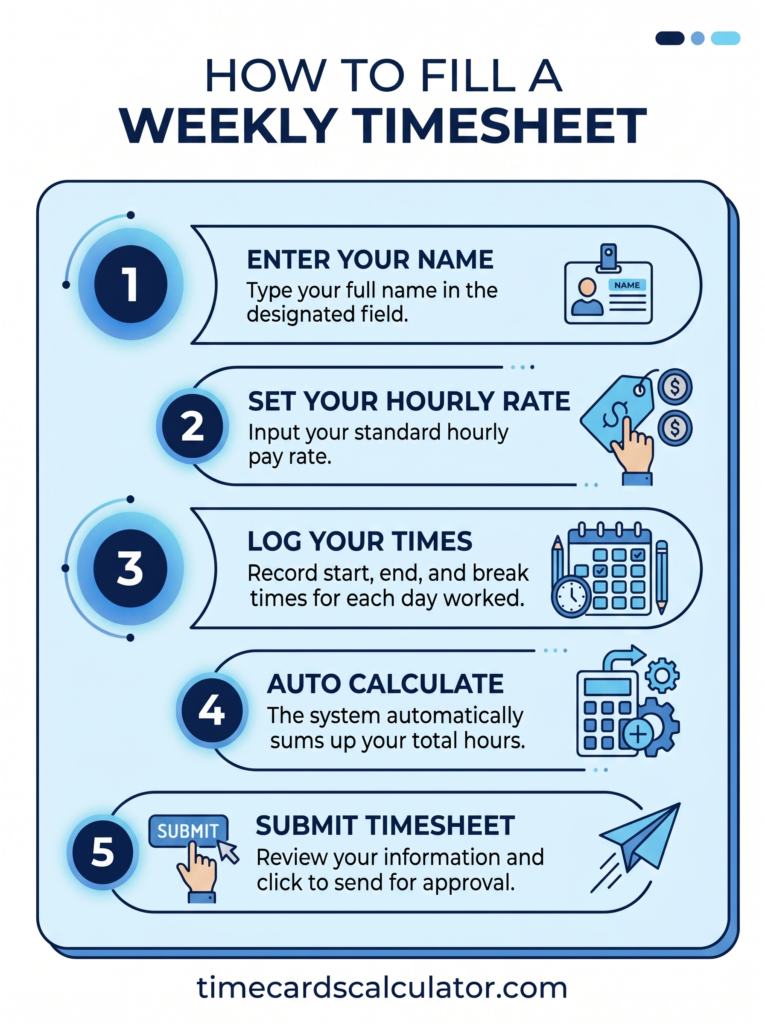
Step 1: Enter employee name, department, manager name, and week ending date at the top of the sheet.
Step 2: Set your hourly rate in the rate field — do this once, it applies to every row.
Step 3: Each day, log your Time In and Time Out in the correct columns.
Step 4: Enter your lunch break duration in hours (0.5 = 30 minutes).
Step 5: Regular hours, overtime hours, and daily pay calculate automatically — do not edit those columns.
Step 6: Check the weekly totals at the bottom, sign the sheet, and submit to your manager or HR department.
Regular Hours vs. Overtime — How This Template Calculates
On a weekly timesheet, overtime refers to any hours worked beyond the standard threshold, typically 8 hours in a single day or 40 hours in a week, depending on which rule applies. Federal law (FLSA) uses the 40-hour weekly threshold for non-exempt employees. California uses both, daily overtime after 8 hours and weekly overtime after 40. Our weekly timesheet template calculates daily overtime automatically.
This comes up a lot, so worth explaining clearly.
Under federal law (FLSA), overtime kicks in after 40 hours in a workweek for non-exempt employees, at 1.5 times the regular rate. But our weekly timesheet uses the daily overtime threshold of 8 hours per day, which is the stricter standard and the one California requires.
Here’s how the formula works in plain English: if you work 9 hours on Monday, 8 of those are regular and 1 is overtime. If you work 6 hours on Wednesday, all 6 are regular. The template tracks this day by day, not just at the weekly total level, which matters if your daily hours fluctuate.
If you’re specifically in California, we have a separate California OT Timesheet Template that handles the 7th consecutive day rule and double time after 12 hours.
Weekly Timesheet Template – Excel vs. Google Sheets vs. PDF
All three formats use the same layout. The difference is just how you use them.
Excel (.xlsx) Download the file, open it in Microsoft Excel 2010 or later, and start filling it in. All formulas work out of the box. Good if you already use Excel regularly and want to save weekly copies on your computer or a shared drive.
Google Sheets Click “Open in Google Sheets” and a copy saves directly to your Google Drive. The formulas carry over perfectly. Good if you’re already in Google Workspace, want to access it from any device, or need to share it with a manager in real time.
PDF A clean blank version of the same template, no formulas, just the layout. Print it and fill in by hand. Good for field workers, construction sites, or anywhere you’re tracking time without a computer nearby.
Tips for Keeping Accurate Weekly Timesheets
Log hours the same day, not at the end of the week. Memory is surprisingly unreliable. You’ll forget the Tuesday you stayed an extra 45 minutes, or the Wednesday you left early. Thirty seconds at the end of each shift saves a lot of guessing on Friday.
Use consistent time formats. If you enter 8:00 AM on Monday, don’t switch to 8 or 08:00 on Tuesday. Excel and Google Sheets are picky about time formats, and inconsistent entries can break the automatic calculations.
Keep a copy each week. Rename the file with the week ending date before you start the next week. “Timesheet-June-14.xlsx” is easier to find than four copies of “Timesheet-Template.xlsx.”
Have your manager sign it. Even for small teams, a signed timesheet is a paper trail that protects both the employee and the employer if there’s ever a payroll dispute.
In short, a weekly timesheet template tracks Monday through Sunday hours, calculates overtime automatically, and gives you a payroll-ready total by Friday. Download it in Excel, open it in Google Sheets, or print the PDF. Free, no signup required.
Frequently Asked Questions
What is a weekly timesheet template?
A weekly timesheet template is a pre-built spreadsheet that tracks an employee’s work hours, time in, time out, lunch breaks, overtime, and total pay, across a standard 7-day work week. The formulas are already built in, so you just enter your times and the calculations happen automatically.
How do I calculate weekly work hours?
For each day, subtract your start time from your end time, then deduct any unpaid lunch breaks. Add those daily totals together for the weekly sum. Our template does all of this automatically, you just log your in and out times.
What is the difference between a timesheet and a time card?
A timesheet typically tracks daily hours in detail, time in, time out, break, regular vs. overtime and often includes pay calculations. A time card is simpler, usually just a clock-in and clock-out record, like a punch card. Both serve the same basic purpose, but timesheets give more detail. We have both: this weekly timesheet template and a separate Timecard Template if you prefer the simpler format.
Does this weekly timesheet template calculate overtime automatically?
Yes. The template calculates overtime based on a daily 8-hour threshold, any hours over 8 in a single day are counted as overtime at 1.5x. The weekly totals update automatically.
Can I use this template in Google Sheets?
Yes, fully. Click “Open in Google Sheets” and a personal copy saves to your Google Drive. All formulas work exactly the same as in Excel.
Is this template free?
Yes, completely free. No email address, no account, no watermark. Download and use it as many times as you need.
Can I customize the overtime threshold or hourly rate?
Yes. The hourly rate and overtime threshold are editable fields at the top of the template. Change them once and the entire sheet recalculates.
Other Timesheet Templates You Might Need
- All 15 Free Timesheet Templates — Complete collection
Also Try Our Free Time Card Calculator
If you’d rather not use a spreadsheet at all, our free Time Card Calculator does the same thing online. Enter your start time, end time, and breaks and it calculates your total hours and pay instantly. Nothing to download, nothing to install.
Related Parent page: Free Timesheet Templates