
Free Time Card Calculator, Calculate Work Hours, Breaks & Overtime Instantly
Do you ever finish a long week & wonder, “Wait… did I actually get paid for all those hours?” You’re definitely not the only one. Manually adding up work hours can be frustrating, and it’s surprisingly easy to make small mistakes that cost you money.
In fact, even a small 10-minute miscalculation every day can cost you hours of unpaid work over a month, and honestly, it’s just a headache. That’s exactly why this free time card calculator exists, to do the hard part for you.
Whether you work a steady 9-to-5, rotating shifts, or multiple jobs, this tool adapts to your schedule ensuring it follows official US FLSA overtime regulations and Federal guidelines for accurate & compliant results.
It’s designed by payroll experts for employees, freelancers, and small business owners who want accurate work hour tracking, reliable payroll calculations, and peace of mind.
You just need to enter your clock-in time, clock-out time, and break duration, and the tool instantly calculates your total hours, including overtime, with clear and accurate results. No sign-up. No cost. No confusion. Built for US workers following official FLSA overtime guidelines.
Try it now and calculate your work hours in seconds, accurately, effortlessly and stress-free.
Table of Contents
What Is a Time Card Calculator?
A time card calculator also known as a time sheet calculator or work hours calculator is a simple online tool that figures out how many hours you worked during a shift or a full pay period. You put in when you started, when you finished, and how long your break was, and it gives you an accurate total right away.
Unlike paper timesheets, a digital time card tool removes manual errors. It can handle tricky situations too, like split shifts, irregular schedules, and overtime rules that are different depending on your state or employer.
It supports both 12-hour and 24-hour formats, handles multiple shifts in a day, and automatically calculates overtime based on standards from the U.S. Department of Labor under the Fair Labor Standards Act. Under these rules, non-exempt employees are entitled to overtime pay after 40 hours a week.
Some states, like California, go even further, daily overtime kicks in after 8 hours. This calculator supports both federal and California overtime rules, helping you estimate your payroll or earnings more accurately and reducing the risk of underpayment or compliance issues, so you always know what you’re owed.
Types of Time Card
Not all time cards work the same way. The format that makes sense for your workplace depends on how your team is structured, how often you run payroll hours calculator, and whether you are tracking one person or a full team.
A paper time card is a printed or handwritten record where employees manually write their clock-in and clock-out times each day. It works for very small operations but creates real problems at scale, math errors accumulate, cards get lost, and there is no automatic overtime detection.
A digital time card solves all of those problems. Hours are entered into an online tool or software, totals calculate automatically, and the completed record exports directly to payroll in PDF, Excel, or CSV format.
A weekly time card covers one 7 day workweek and is the most common format for hourly workers. Most FLSA overtime calculations are based on the 7-day workweek, which makes weekly time cards the natural fit for compliance.
A biweekly time card covers two full workweeks in a single record and is standard in restaurants, retail stores, cleaning services, and other businesses where payroll runs every 14 days. It is important to note that overtime under federal law is still calculated workweek by workweek, not averaged across the full two-week period.
A monthly time card covers a full calendar month and is most commonly used by salaried employees or independent contractors who bill clients by the hour.
A multiple employee time card system gives each worker their own individual record within a shared payroll cycle. For small business owners managing teams of 10 to 20 hourly workers, this is the most accurate way to track hours, apply individual pay rates, and flag overtime separately for each employee.
Our free time card calculator supports all of these formats, select your pay period, enter your hours, and it handles the rest.
Time Card Calculator vs Paper Timesheets
When you track hours by hand, you have to add everything up yourself. That means converting minutes to decimals, double-checking every entry, and hoping you didn’t make a small math mistake that quietly shortchanges your paycheck.
One wrong number can throw off your whole week. A digital time card calculator takes all of that off your plate. It calculates, converts, and flags overtime automatically, in seconds.
| Feature | Paper Timesheet | This Calculator |
|---|---|---|
| Math errors | Common | None — auto-calculated |
| Overtime detection | Manual | Automatic |
| Decimal conversion | You calculate | Done instantly |
| Export for payroll | Not available | PDF, Excel, CSV |
| California overtime | You must know rules | Built-in settings |
How Do I Add Up Work Hours?
The basic formula is the same regardless of shift length. Subtract your start time from your end time, deduct any unpaid lunch break, and you have your hours worked for that day. A standard 8 hour work day with a 30 minute lunch means you clock in at, say, 8:00 AM and out at 4:30 PM, 8.5 hours on the clock minus 0.5 for lunch equals 8.0 paid hours.
For a 40 hour work week, that’s five 8 hour days. If your schedule varies day to day, add each day’s net hours separately and total them at the end of the week. Once you hit 40, any additional hours are overtime at 1.5x under federal FLSA rules.
Our calculator does all of this automatically. Enter your time in, time out, and break for each day and it adds up your work hours, flags overtime, and converts everything to decimal for payroll, no manual math needed.
How to Calculate Work Hours, Step by Step
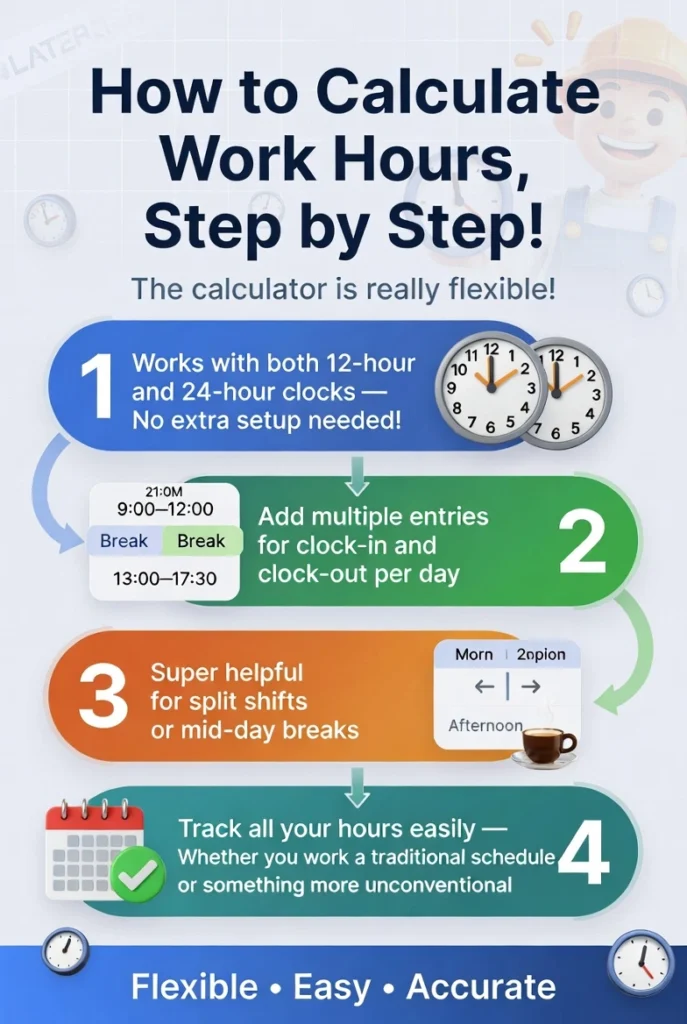
This time card calculator is flexible. It works with both 12-hour (AM/PM) and 24-hour (military) time, so there’s no extra setup. You can also add multiple clock-in and clock-out entries for the same day, perfect for split shifts or mid-day breaks. While our online timecards calculator does the math for you, it is important to understand the formula behind manual work hour tracking. To calculate your hours by hand, here is the basic formula inline with FLSA Guidelines.
Total Hours Worked = (Clock Out Time – Clock in Time) – Break Duration
Working a split shift? Just calculate each shift separately using the formula above and add the totals together in the end. Understand with Examples:
1. Convert your times to a 24-hour format to avoid AM/PM confusion. For example, 1:00 PM becomes 13:00.
2. Subtract the start time from the end time. If you start at 9:00 AM (09:00) and end at 5:30 PM (17:30), the elapsed time is 17:30 – 09:00 = 8 hours and 30 minutes.
3. Convert your minutes to decimals so payroll software can read them. Divide your minutes by 60. So, 30 minutes ÷ 60 = 0.5 hours. Your total elapsed time is 8.5 hours.
4. Subtract unpaid breaks. If you took a 30-minute lunch (0.5 hours), your equation is 8.5 – 0.5 = 8.0 hours worked.
Free Time Card Templates (PDF, Excel & Word)
Prefer tracking hours by hand or in a spreadsheet? Download our free weekly time card template in the format that works best for you.
All templates follow standard FLSA guidelines. Simply fill in your clock-in and clock-out times, add your break duration, and calculate your weekly totals. No sign-up required.
How to Calculate Overnight Shift
One of the most common mistakes in payroll occurs when calculating shifts that cross over midnight. If you clock in at 10:00 PM on Monday and clock out at 6:00 AM on Tuesday, standard subtraction breaks down.
To calculate an overnight shift manually:
- Calculate the hours worked before midnight: From 10:00 PM to 12:00 AM is 2 hours.
- Calculate the hours worked after midnight: From 12:00 AM to 6:00 AM is 6 hours.
- Add them together: 2 + 6 = 8 hours.
Our free time card calculator automatically recognizes when a clock-out time is earlier than a clock-in time and will accurately compute your overnight shift without any extra effort on your part.
What is a Calculadora de Horas?
If you searched for calculadora de horas or calculadora de horas de trabajo, you are in the right place. Calculadora de Horas is simply the Spanish term for a time card calculator. This free tool works exactly the same way for Spanish-speaking workers across the US, enter your hours, get accurate results instantly. No sign-up, no cost.
Also known as: hoja de horas, calculadora de tiempo, calculadora de horas trabajadas.
How to Use the Time Card Calculator
It only takes a minute. Here’s how:
Working a split shift? Just add more than one clock-in and clock-out pair for the same day. The calculator subtracts break time on its own, so only real work hours are counted.
Sample Hours Table
| Day | Start | End | Break | Total Hours | Overtime |
|---|---|---|---|---|---|
| Monday | 9:00 AM | 5:00 PM | 1 hr | 7.0 hrs | 0 hrs |
| Tuesday | 9:00 AM | 6:00 PM | 1 hr | 8.0 hrs | 1 hr |
| Wednesday | 9:00 AM | 5:00 PM | 30 min | 7.5 hrs | 0 hrs |
Key Features Of Time Card Calculator
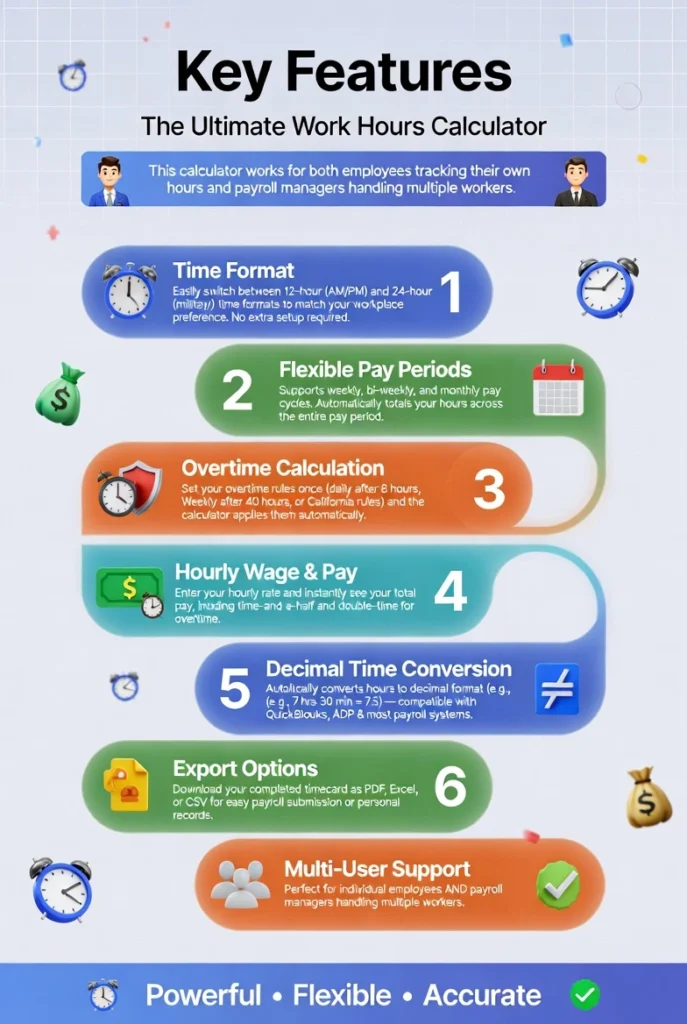
This time card calculator works for employees tracking their own hours and for payroll managers handling a whole team. Here’s what it can do:
Time Format: Choose 12-hour AM/PM or 24-hour military time, whatever your workplace uses.
Flexible Pay Periods: Set up weekly, biweekly, or monthly pay periods. Your hours are totalled automatically across the full period.
Overtime Calculation: Enter your overtime rules once — daily after 8 hours, weekly after 40 hours, or California’s rules, and the calculator applies them every time.
Hourly Wage & Pay: Add your hourly rate and the tool calculates your total pay, including time-and-a-half or double-time for overtime hours.
Decimal Time Conversion: All hours convert to decimal format automatically. For example, 7 hours 30 minutes becomes 7.5, the format used in payroll systems like QuickBooks and ADP.
Export Options: Download your completed time card as a PDF, Excel spreadsheet, or CSV file for payroll or personal records.
Time Card vs Time Clock: What Is the Difference?
These two terms are often used interchangeably, but they refer to different things. A time clock is the device or system that captures when an employee starts and finishes work, whether that is a mechanical punch clock, a biometric scanner, or a mobile app. A time card is the record that results from those entries, the actual document showing hours worked, breaks taken, and total time for the pay period.
The practical difference matters for small businesses. A time clock automates the capture process but requires hardware or a paid software subscription. A time card can be created and calculated manually, through a spreadsheet, or through a free online calculator, no device required.
One other key distinction is compliance. A time clock records the moment of entry, but FLSA compliance depends on what happens to that data afterward, how breaks are deducted, how overtime is calculated, and how records are stored. A time clock alone does not guarantee accurate payroll. The time card process does.
You can have a time card without a time clock, which is exactly what our free online calculator provides commonly used as an HR calculator for employee attendance & payroll records.
Time Card Calculator Apps Comparison
There are dozens of time card apps marketed to small businesses, and most of them share the same basic problem, they are free to try but paid to actually use. Here is how this calculator is different.
Clockify offers a free tier but requires account creation and login before you can track a single minute. Basic overtime settings need manual configuration, and California daily overtime rules are not built in. Homebase is designed primarily as a scheduling tool with time tracking added on, the free plan is limited, and exporting to PDF or Excel requires a paid subscription. QuickBooks Time, formerly TSheets, is a fully paid product with no permanent free option. It handles FLSA and California overtime well, but it requires an app download and a monthly fee that starts at several dollars per user.
This calculator requires none of that. Open a browser, enter your hours, and get accurate totals with overtime calculated automatically, federal rules and California daily overtime both built in, no configuration needed. There is no account, no app, no subscription, and no paywall between you and your completed time card.
For a team of 15 or 20 hourly workers, a restaurant, a cleaning service, a retail shop, the difference between a free browser tool and a per-user monthly subscription adds up to hundreds of dollars a year for functionality that is identical at the payroll calculation level.
Weekly, Biweekly, and Monthly Timecard Calculations
Not every job pays on the same schedule. Some people get paid weekly, some every two weeks, and some once a month. This calculator works for all common pay periods:

Weekly Pay:
Add your daily hours for the full week and the calculator totals them. If any day pushes your weekly total past 40 hours, overtime is flagged automatically.
Biweekly Pay:
Set the pay period to two weeks and enter hours for each working day. Running totals show you exactly where you stand before the period ends.
Monthly Pay:
Perfect for salaried employees or contractors billing by the hour. The monthly view gives a complete record of hours worked, ready to download in one click.
Exempt vs Non-Exempt Employees
Whether overtime rules apply to you depends on how you’re classified. Most hourly workers are non-exempt, meaning overtime rules do apply. Salaried employees who earn above a certain amount and do executive or professional work may be classified as exempt, meaning they don’t get overtime pay.
Non-Exempt Employees: Most hourly workers fall into this category. If you are non-exempt, your employer is legally required to pay you overtime (usually 1.5x your regular pay rate) for any hours worked over 40 in a workweek.
Exempt Employees: Salaried employees who earn above a certain threshold and perform specific professional, administrative, or executive duties may be classified as exempt, meaning they do not get overtime pay.
Not sure which category you fall into? [See our full guide → California Overtime Calculator]
Avoid Common Time Card Calculator Mistakes
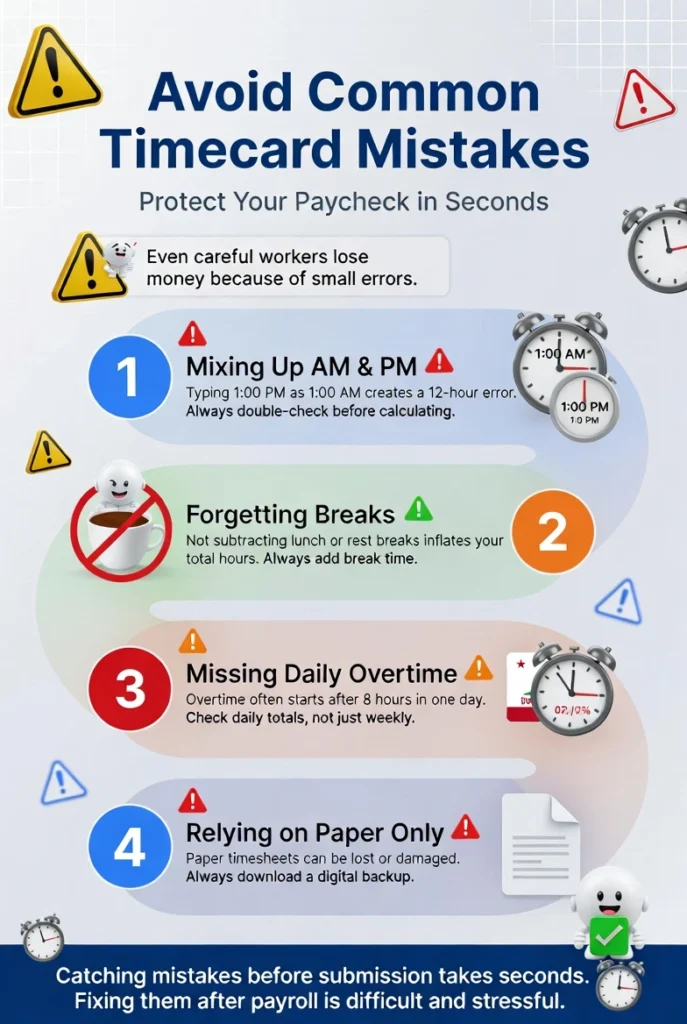
Even careful workers make small mistakes that quietly affect their pay. Here are the most common ones:
Mixing up AM and PM: A 1:00 PM entry typed as 1:00 AM creates a 12-hour error in your shift. Always double-check before you hit calculate.
Forgetting to subtract breaks: If you enter a start and end time without logging your lunch break, your total hours will be too high. Always add break time first.
Missing daily overtime: If you work in California, overtime starts after 8 hours in a single day, not just after 40 hours in a week. Workers who only check weekly totals often miss overtime they’re actually owed.
Relying on paper records only: Paper timesheets can be lost or damaged. Downloading a digital copy takes seconds and protects your hours.
Catching these errors before you submit takes seconds. Fixing them after payroll runs does not.
Advanced Settings & Tips of Time Card Calculator
Once you’re comfortable with the basics, these settings help you get even more accurate results from time card calculator:
Rounding Options
Choose 15-minute rounding (the 7-minute rule), 5-minute rounding, or no rounding at all, depending on your workplace policy.
Military Time
Switch to 24-hour format if your workplace uses it. All calculations work exactly the same way.
Time Off
Log days off separately so your weekly and pay period totals stay accurate.
Multiple Shifts
Working a split shift? Add more than one clock-in and clock-out pair for the same day. The calculator handles each shift separately and totals everything correctly.
Understanding Decimal Time
Converting hours and minutes to decimal is simple, just divide the minutes by 60. So, 7 hours 45 minutes becomes 7.75. Most payroll software like QuickBooks and ADP uses decimal format automatically. For Example:
7 hours 45 minutes → 45 ÷ 60 = 0.75 → 7.75 hours
That is, it. No complicated formula, no guesswork. Here is a quick reference:
| Minutes | Decimal |
|---|---|
| 15 min | 0.25 |
| 30 min | 0.50 |
| 45 min | 0.75 |
Our calculator converts everything automatically, so you never have to do this math yourself.
[Read Full Guide → Understanding Decimal Time]
Time Rounding Rules
Ever noticed your timesheet shows 9:00 AM even though you clocked in at 9:04? That is not a mistake , it is called time rounding. Many workplaces round clock-in and clock-out times to the nearest 15 minutes, this is called the 7-minute rule. The FLSA allows rounding as long as it doesn’t consistently favors the employer. For example:
- Clock in at 9:01 to 9:07 → rounds down to 9:00
- Clock in at 9:08 to 9:14 → rounds up to 9:15
If your employer’s rounding policy consistently cuts into your hours, that is a labor violation. Not sure which rounding rule your workplace uses or which labor time calculator you should use? Our calculator lets you turn rounding on or off so your timecard always matches your company’s official policy.
[Read Full Guide → Time Rounding Rules Explained]
Save, Share & Export Your Time Card
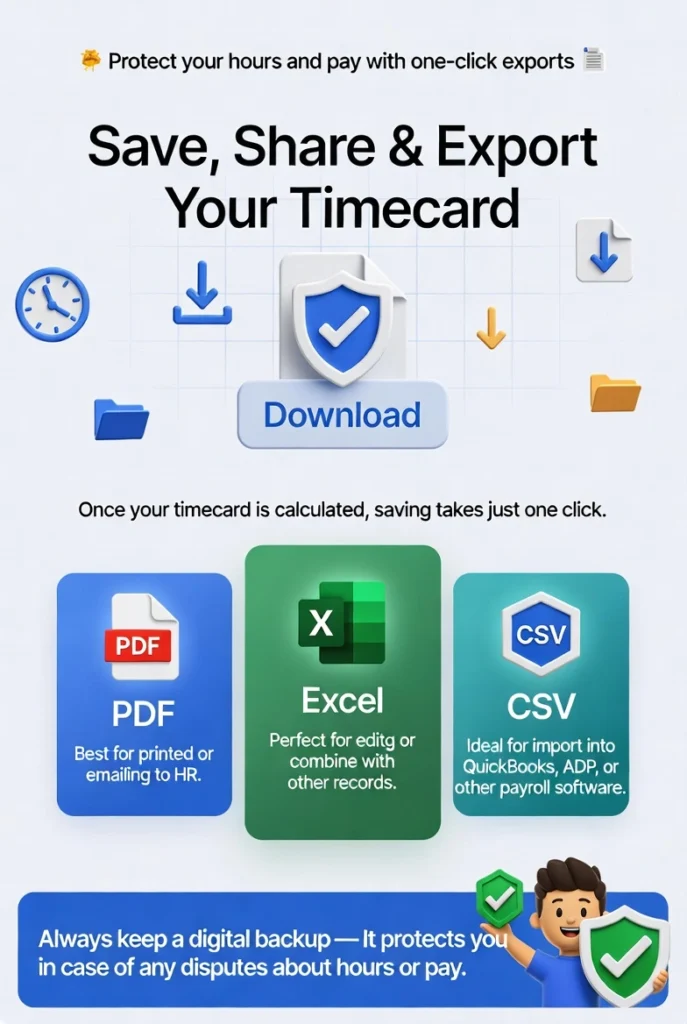
Saving your time card protects you. If there’s ever a question about your hours or pay, having documentation ready means you can clear it up fast. Once your hours are calculated, saving takes one click.
Click Download or Print at the top of your completed time card and pick your format:
- PDF: Best for printing or emailing to HR
- Excel: Best for editing or combining with other records
- CSV: Best for importing into payroll software like QuickBooks or ADP
Getting into the habit of saving a copy for every pay period takes seconds, and it’s worth it.
Who Can Use This Time Card Calculator?
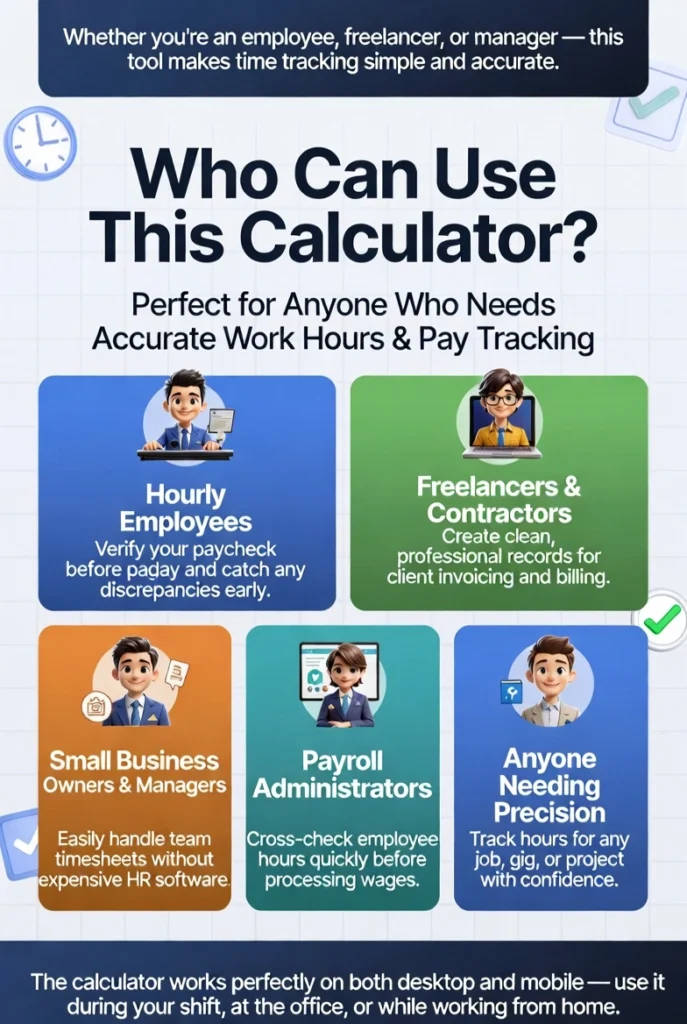
This tool works for anyone who needs accurate, documented work hours:
Hourly employees: Verify your paycheck before payday and catch any discrepancies early.
Freelancers and contractors: Bill clients by the hour with clean, downloadable records ready for invoices.
Small business owners and managers: Handle timesheets for your team without needing dedicated HR software.
Payroll administrators: Cross-check employee-submitted hours against your records before processing wages.
The time card calculator works on desktop & mobile, so you can use it during a shift, at the office, or from home.
Manage Hourly Teams Perfectly
For small business owners managing hourly teams, payroll accuracy is not just about the math, it is about having a clear, consistent process every single week.
Give every employee their own record. Mixing multiple workers into one document creates confusion and makes disputes nearly impossible to resolve. Each employee needs their own time card with their name, pay rate, and individual daily hours.
Set overtime rules once. Whether your team follows federal 40-hour weekly rules or California daily overtime, configure the rule at the start of the pay period and apply it consistently to every worker.
Track breaks separately. Unpaid breaks must be deducted from total hours. A missed 30-minute break deduction across 15 employees adds up to over 7 hours of overpaid time per week, a payroll error that compounds every single pay cycle.
Export at the end of every pay period. A downloaded PDF or Excel file creates a paper trail that protects both the employer and the employee in any wage dispute. Under federal law, payroll records must be kept for a minimum of three years.
Our free time card calculator for multiple employees handles all of this automatically, separate records, automatic overtime, and one-click export for the whole team.
Frequently Asked Questions (FAQs)
Is this time card calculator really free?
Yes, completely free. No sign-up, no subscription, no credit card. Open the tool, enter your hours, and get accurate results instantly.
How do I calculate my work hours with breaks?
Enter your clock-in time, clock-out time, and break duration in minutes. The calculator automatically subtracts break time and gives you your net hours worked for the day.
Does this calculator handle overtime automatically?
Yes. Overtime is flagged automatically once your weekly hours cross 40 under federal FLSA rules. If you work in California, you can switch to California overtime mode, which flags overtime after 8 hours per day.
What if my shift crosses midnight?
Overnight shifts are handled automatically. The calculator detects when clock-out is earlier than clock-in and computes the correct total without any manual adjustment.
What is the difference between decimal time and hours and minutes?
Decimal time shows your hours as a decimal number, for example, 7 hours and 45 minutes becomes 7.75. Payroll hours calculators & software like QuickBooks and ADP uses this format. This calculator converts between the two automatically.
Can I use this for biweekly or monthly pay periods?
Yes. The calculator supports weekly, biweekly, and monthly pay periods. Select your pay period and enter your daily hours, totals and overtime are calculated automatically.
Can I export or print my time card?
Yes. Export your completed time card to PDF, Excel, or CSV, ready to print, file, or send to payroll.
Does this work for multiple employees?
Yes. Small business owners can track each worker separately. Every employee gets their own record with daily totals, overtime, and a weekly summary.
Can I add employee names to the time card?
Yes. Add the employee name, date range, and any notes before downloading, so all important details appear right on the time card.
What is a Calculadora de Horas?
Calculadora de Horas is the Spanish term for a time card calculator. Our tool works equally well for English and Spanish-speaking workers across the US.
Can this calculator tell me when I’ll get paid?
No, this calculator shows your total hours worked. Your actual pay date depends on your employer’s pay schedule, weekly pay periods typically pay out on Friday, biweekly every other Friday.
How do I figure time for payroll?
To figure time for payroll, record your start and end time for each shift, subtract any unpaid breaks, and convert the result to decimal hours. For example, a shift from 8:00 AM to 4:30 PM with a 30 minute lunch is 8 hours net, or 8.0 in decimal. Add up all daily totals for the pay period and multiply by your hourly rate for gross pay. Our free time card calculator does all of this automatically, just enter your times and it handles the math.
How do I add up work hours?
Subtract your start time from your end time for each day, deduct any unpaid lunch break, and add the daily totals together for the week. For example, 8:00 AM to 4:30 PM with a 30 minute lunch equals 8.0 paid hours. Our time card calculator does this automatically for every day of your pay period.
How many hours did I work?
Enter your clock-in and clock-out times into the calculator along with your break duration. It calculates your exact hours worked for each day and totals them for the week, no manual addition needed.
How many hours in an 8 hour work day after lunch?
It depends on your lunch break length. A 30 minute unpaid lunch on an 8.5 hour shift (8:00 AM to 4:30 PM) leaves 8.0 paid hours. A 60 minute lunch on a 9 hour shift (8:00 AM to 5:00 PM) also leaves 8.0 paid hours. The calculator deducts your break automatically once you enter the duration.
How do I calculate a 40 hour work week?
Add up your net hours worked each day, after subtracting unpaid breaks, across all five days. Five 8 hour days equals 40 hours. If any day runs short or long, the weekly total adjusts accordingly. Any hours beyond 40 in the same workweek are overtime under federal FLSA rules.
Conclusion
Tracking your work hours accurately matters, for your pay, your records, and your peace of mind. This free time card calculator removes the guesswork. Enter your times, set your rules, and get accurate totals in seconds.
Whether you’re an hourly employee checking your weekly hours, a freelancer billing a client, or a manager handling payroll for a small team, this tool gives you numbers you can count on.
Try it now. It’s free, fast, and no sign-up needed.
Related: Timesheet Templates | Military Time Converter | California Overtime Rules | 7 Minute Rule Explained | Time Card for Multiple Employees