
Free Biweekly Timesheet Template – Excel & Google Sheets
Quick Answer: A biweekly timesheet template tracks two full work weeks, 14 days, on a single sheet. It records daily time in, time out, and lunch breaks for both Week 1 and Week 2, calculates regular and overtime hours separately for each week, and combines both into one gross pay total for the pay period. Overtime is calculated per week, not across the combined 14 days, because the FLSA requires overtime to be based on a single workweek. Download it free in Excel, open it in Google Sheets, or print the PDF, no signup required.
If you get paid every two weeks, you already know the drill, two full weeks of work, one paycheck, and somewhere in the middle you have to track every hour correctly or your gross pay won’t add up right. A standard weekly template splits that across two files. A basic spreadsheet means you’re doing the math yourself. Neither is ideal.
A biweekly timesheet template keeps both work weeks on a single sheet, Week 1 & Week 2, with automatic hour totals, overtime separation, and gross pay calculation built in. You log your times daily, and by the end of day 14 everything is already done.
Our free biweekly timesheet template works in Excel and Google Sheets. Download the file, open a copy in Google Sheets, or print the PDF for a handwritten version.
Table of Contents
What Is a Biweekly Timesheet Template?
A biweekly timesheet template is a pre-built spreadsheet that tracks an employee’s work hours across two consecutive work weeks — 14 days total. It records daily time in, time out, and lunch breaks for both weeks, calculates regular and overtime hours separately, and produces a single gross pay total for the entire biweekly pay period. Everything calculates automatically once you enter your start and end times.
The biweekly format is the most common pay schedule in the United States. According to the U.S. Bureau of Labor Statistics, more American workers are paid biweekly than on any other pay frequency, which is exactly why having a clean, reliable biweekly timesheet matters.
What’s Inside This Biweekly Timesheet Template
| Column | What It Does |
|---|---|
| Day & Date | 14 rows — Monday Week 1 through Sunday Week 2 |
| Time In | Daily shift start time |
| Time Out | Daily shift end time |
| Lunch Break (hrs) | Unpaid break deducted automatically |
| Regular Hours | Hours up to 8 per day, auto-calculated |
| Overtime Hours | Hours over 8 per day at 1.5x, auto-calculated |
| Total Hours | Regular + Overtime per day |
| Week Subtotals | Separate running totals for Week 1 and Week 2 |
| Gross Pay | Full biweekly earnings, auto-calculated |
At the top: employee name, department, manager name, and pay period end date. At the bottom: combined totals for both weeks, regular hours, overtime hours, total hours worked, and gross pay for the entire pay period.
Who Uses a Biweekly Timesheet Template
The short answer: anyone on a two-week pay cycle. But let’s be specific, because the biweekly format solves a particular set of problems.
Hourly workers on biweekly payroll need an accurate 14-day record before every payday, not two separate weekly sheets, one combined view. Managers overseeing small teams on biweekly schedules use it to review and approve hours without juggling multiple files per employee. HR departments use it to verify time records before running payroll every two weeks. Freelancers and contractors billing clients biweekly use it to pull a clean total for invoices.
If your pay period runs weekly instead, the Weekly Timesheet Template is the better fit. If you track time monthly, the Monthly Timesheet Template covers all 31 days in one place.
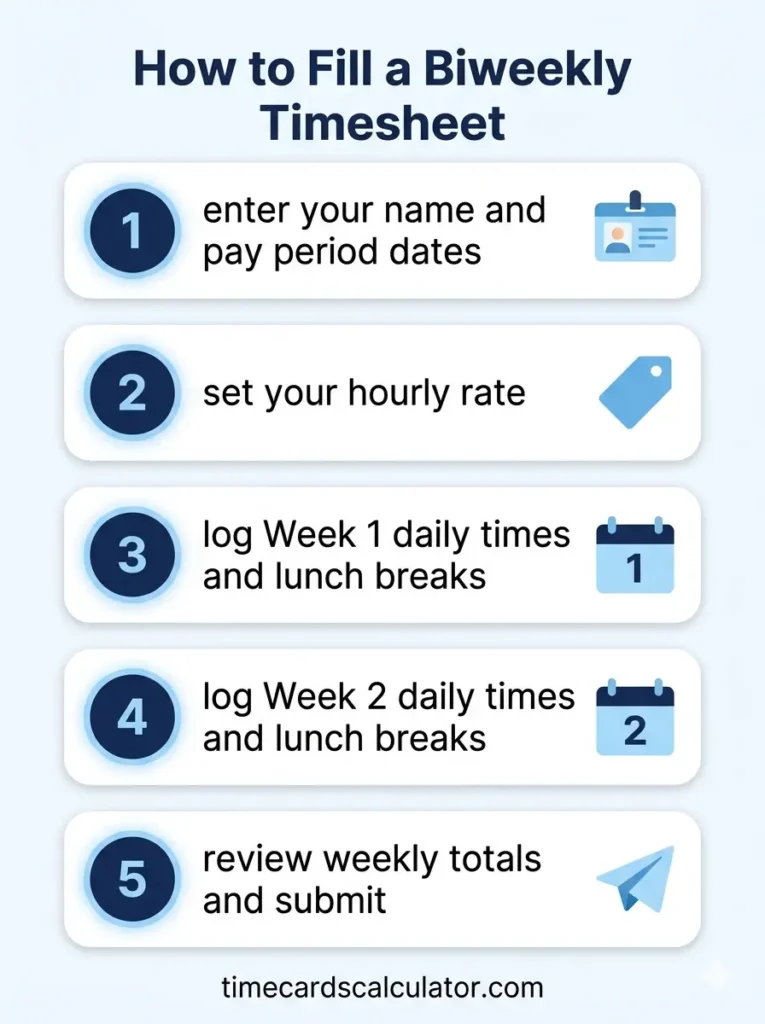
How to Fill Out a Biweekly Timesheet
The process is the same as a weekly timesheet, just twice as long. Here is the full walkthrough.
Step 1 — Enter your header details At the top of the sheet, fill in your employee name, department, manager name, and the pay period end date. The pay period end date is the last day of your 14-day cycle, usually the Friday before your payday.
Step 2 — Set your hourly rate Enter your regular hourly rate in the rate field. If your overtime rate is different (typically 1.5x your regular rate), there’s a separate field for that too. You only do this once, it applies to every row in both weeks.
Step 3 — Log your daily times for Week 1 Each day in Week 1, enter your Time In and Time Out. Enter your lunch break duration in decimal hours, 0.5 for 30 minutes, 1.0 for a full hour. The template deducts it from your daily total automatically.
Step 4 — Continue through Week 2 Same process for Week 2. The sheet tracks both weeks independently so you can see each week’s subtotal clearly, then combines them at the bottom.
Step 5 — Review the totals Check the Week 1 subtotal, the Week 2 subtotal, and the combined biweekly total at the bottom. Regular hours, overtime hours, and gross pay are all broken out separately.
Step 6 — Submit for approval Save the file with your pay period end date in the filename, “Timesheet-June-28.xlsx” and submit to your manager or HR for payroll processing.
How Overtime Works on a Biweekly Timesheet
This is where biweekly timesheets get a little more nuanced than weekly ones & where most people get confused.
The federal rule (FLSA) calculates overtime on a workweek basis, not a pay period basis. That means even though you’re paid every two weeks, overtime is still calculated week by week — not across the full 14 days combined. If you work 45 hours in Week 1 and 35 hours in Week 2, you have 5 overtime hours total (from Week 1), not zero just because your two-week average is 40 hours.
Our biweekly timesheet template handles this correctly, it calculates overtime separately for Week 1 and Week 2, then combines both totals at the bottom. You get an accurate picture of overtime for each week, not a misleading average.
If you work in California, the rules go further, daily overtime after 8 hours and double time after 12 hours also apply. Our separate California OT Timesheet Template is built specifically for that.
Biweekly vs. Semimonthly, What’s the Difference?
These two pay schedules sound the same but they’re not, and it matters for timesheets.
Biweekly means you’re paid every two weeks, 26 paychecks per year. Your pay period is always exactly 14 days, starting and ending on the same day of the week.
Semimonthly means you’re paid twice a month, 24 paychecks per year. Your pay period runs from the 1st to the 15th, then the 16th to the end of the month. The number of days varies, and it never lines up cleanly with a standard workweek.
If you’re paid semimonthly, a biweekly timesheet template won’t align with your pay periods. The Monthly Timesheet Template works better for semimonthly pay because it tracks the full calendar month.
Excel vs. Google Sheets vs. PDF, Which Should You Use?
Excel (.xlsx) Download the file and open it in Microsoft Excel 2010 or later. All formulas carry over perfectly. Good if you prefer working offline, want to archive copies on a local drive, or your HR department requests Excel files specifically.
Google Sheets Click “Open in Google Sheets” and a personal copy saves directly to your Google Drive. Works on any device, accessible from anywhere, and easy to share with a manager for real-time review. The formulas are identical to the Excel version.
PDF A clean, blank printable layout, no formulas, just the structure. Print it and fill in by hand. Useful for job sites, field work, or any situation where you’re tracking time away from a screen.
Tips for Staying Accurate Across Two Weeks
Two weeks is long enough that small errors at the start compound by the end. A few habits that prevent that:
Log your hours at the end of each shift, not at the end of the pay period. Fourteen days of memory is not reliable. Thirty seconds of entry at the end of each day means your timesheet is already done by day 14.
Double-check your lunch entries. A missed lunch deduction on three days adds up to 1.5 extra hours, enough to shift your overtime calculation. The template won’t know if you forgot to enter it.
Save a new copy at the start of each pay period. Rename the previous file with its pay period end date before opening a fresh one. Keeping them organized by date makes it easy to pull historical records if there’s ever a payroll question.
Make sure your Week 1 and Week 2 dates are entered correctly. The date column is manual, if the dates are wrong, your submission will confuse HR. Fill them in at the start of the pay period, not the end.
Frequently Asked Questions (FAQs)
What is a biweekly timesheet template?
A biweekly timesheet template is a pre-built spreadsheet that tracks employee work hours across two consecutive work weeks, 14 days total. It records daily time in, time out, and lunch breaks for both weeks, calculates regular and overtime hours automatically, and produces a single gross pay total for the full biweekly pay period.
How do I calculate hours for a biweekly pay period?
Calculate daily hours for each of the 14 days, subtract start time from end time, deduct unpaid lunch, then add all 14 daily totals together. Overtime must be calculated separately for each week, not across the combined 14-day total, because federal law (FLSA) requires overtime to be calculated on a weekly basis. Our biweekly timesheet template handles all of this automatically.
Is overtime calculated weekly or biweekly?
Weekly, always. Under the FLSA, overtime is calculated per workweek, not per pay period. Even if you’re paid every two weeks, each individual week’s hours are evaluated separately against the 40-hour overtime threshold. A biweekly template that combines both weeks into one total before calculating overtime will give you the wrong number.
What is the difference between biweekly and semimonthly pay?
Biweekly means paid every two weeks, 26 pay periods per year, always exactly 14 days. Semimonthly means paid twice a month, 24 pay periods per year, with varying day counts. The biweekly timesheet template is designed for 14-day pay periods. For semimonthly pay, use the monthly timesheet template instead.
Does this template work in Google Sheets?
Yes, fully. Click “Open in Google Sheets” and a personal copy saves directly to your Google Drive. All formulas carry over and work exactly the same as in Excel.
Can I adjust the overtime threshold or hourly rate?
Yes. Both are editable fields at the top of the template. Change your hourly rate or overtime threshold once and everything recalculates across all 14 rows automatically.
Is this biweekly timesheet template free?
Yes, completely free. No email, no account, no watermark. Download the Excel version, open it in Google Sheets, or print the PDF as many times as you need.
When does this week’s timecard get paid?
That depends on your employer’s pay schedule. If you’re on a biweekly cycle, payday is typically every other Friday, 14 days after your pay period ends. Weekly pay periods usually pay out the Friday of that same week. This template shows your total hours for the pay period, your employer’s payroll schedule determines the actual pay date.
In Short
A biweekly timesheet template covers 14 days of work hours on a single sheet, Week 1 & Week 2, with automatic overtime calculation per week and a combined gross pay total at the bottom. It’s the right tool if you’re on a two-week pay cycle and need an accurate, payroll-ready record every 14 days.
Other Timesheet Templates You Might Need
- Weekly Timesheet Template — Standard 7-day format with overtime
- Monthly Timesheet Template — Full month view with weekly breakdowns
- Overtime Timesheet Template — Daily OT and double time tracking
- California OT Timesheet Template — Follows CA Labor Code §510
- All 15 Free Timesheet Templates — Complete collection
Also Try Our Free Time Card Calculator
Prefer to skip the spreadsheet entirely? Our free Time Card Calculator lets you enter your start time, end time, and breaks online & calculates your total hours and pay instantly. No download, no signup, no setup.
Parent page: Free Timesheet Templates